
Convert Link to QR Code: A Free Guide for Any Link
You have a link and you want people to open it without typing a single letter. This guide shows you how to convert link to QR code in under a minute, and which kinds of links work best.
Written by Muhammad Usman, founder of ud2ools
Quick answer: To convert link to QR code, copy your link, paste it into the ud2ools URL to QR Code Generator, press Generate, and download the QR code as PNG or SVG. It is free, needs no sign-up, and runs in your browser. It works with normal web links, including WhatsApp, YouTube, Google Drive, Google Maps, Instagram and form links.
Why convert a link to a QR code?
Most links are long and full of random letters and symbols. Typing them on a phone is slow, and one wrong character sends people to an error page.
A QR code fixes that. The person points the phone camera at the code, taps the link that appears, and lands on your page. A QR code is simply a two-dimensional barcode that stores text, and a web link is one of the most common things people store in it.
It also helps when your link has to live on paper. A menu, a flyer, a business card, a shop counter or a poster cannot be clicked, but it can be scanned. Sellers use this a lot, because a customer can reach a product page or a WhatsApp chat without asking "what was the link again?"
How to convert link to QR code on ud2ools
The whole process takes less than a minute. You only need the link and the URL to QR Code Generator. Here are the steps.
- Copy your link. Take it from the browser address bar, or use the Share button inside the app and choose copy link.
- Open the generator. Go to the ud2ools URL to QR Code Generator.
- Paste the link into the input box. Check that the link is complete and starts with https.
- Press Generate. Your QR code appears right away.
- Download it as a PNG or an SVG file.
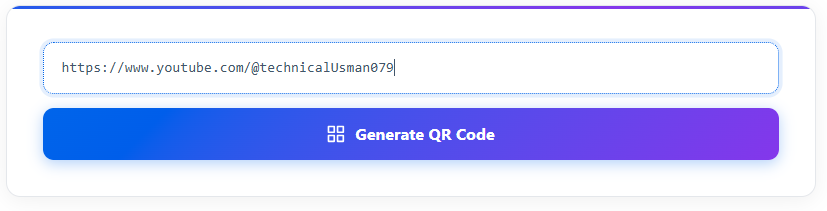
Which file should you pick? PNG is fine for chats, social media posts and documents. SVG stays sharp at any size, so it is the better choice when you print something large, like a poster or a banner. If you are not sure, download both.
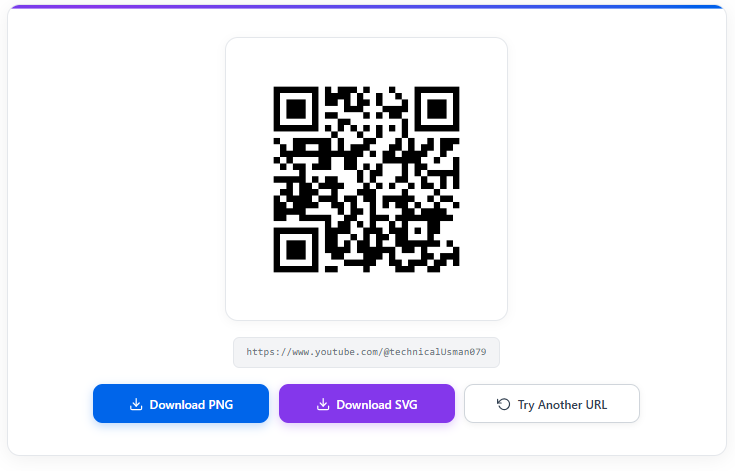
A few honest notes about the tool. The QR code is black, in a normal size, and there is no logo option yet. A logo option is planned for a later update. The tool is free, and because it runs in your browser, your link is not saved anywhere.
Which links can you turn into a QR code?
Almost any link that opens in a browser or an app will work. Here is a quick overview, and then more detail on each one.
| Link type | Where to find the link | Good for |
|---|---|---|
| WhatsApp chat link | Build it as wa.me plus your number | Shops, services, support |
| YouTube video or channel | Share button, then copy link | Creators, tutorials, promos |
| Google Drive file | Share button, then copy link | Price lists, PDFs, portfolios |
| Google Maps location | Share button, then copy link | Shop address, event venue |
| Instagram profile | instagram.com/username | Getting followers |
| Online form | Send or Share option in the form | Feedback, registration |
Convert a WhatsApp link to QR code
A WhatsApp click-to-chat link looks like wa.me followed by the phone number in international format. WhatsApp's own click to chat help page says to leave out the plus sign, zeros, brackets and dashes. For a Pakistani number, it looks like wa.me/92XXXXXXXXXX.
Paste that link into the generator and print the code near your shop counter. A customer scans it and the chat opens.
YouTube video or channel
Open the video or your channel, tap Share and copy the link. A QR code on a poster or a screen at an event lets people reach your channel without searching for the name.
Google Drive file
This one needs one extra check. Before you make the QR code, open the sharing settings of the file and make sure the people you want can actually open it. If the file is private, the person who scans will not be able to see it.
It works well for a PDF menu, a price list, a resume or a portfolio.
Google Maps location
Open your shop or venue in Google Maps, tap Share and copy the link. Put the QR code on a visiting card or a flyer so people get directions without typing the address.
Instagram profile
An Instagram profile link follows the pattern instagram.com/username. Replace "username" with your real handle, paste it into the tool, and your followers are one scan away.
Online forms
Google Forms and most other form tools give you a link from the Send or Share option. Turn that link into a QR code for feedback forms, event registration or a simple order form.
When a link is not the right kind of QR code
Sometimes you do not want to share a link at all. ud2ools has other QR code generators for those cases, and each one has its own page.
- Plain words, a coupon code or a note: use the Text to QR Code Generator.
- Guest internet access: use the WiFi QR Code Generator.
- Your name, phone number and details: use the VCard QR Code Generator.
- A ready-to-send email: use the Email QR Code Generator.
- A date, time and place: use the Event QR Code Generator.
You can see all of them together on the QR Code Generator page.
What to check before you print
A QR code that does not scan is worse than no QR code. Spend two minutes on these checks before you print or share.
- Scan it yourself. Use your phone camera and make sure the right page opens.
- Test at the printed size. If you shrink the code too much on paper, some phones will struggle to read it.
- Print it on a light background. The code is black, so it needs a plain light surface behind it.
- Make sure the page is open to everyone. A private Drive file or a deleted page leads nowhere.
- Check the link letter by letter. The link is stored inside the code, so you cannot edit it later.
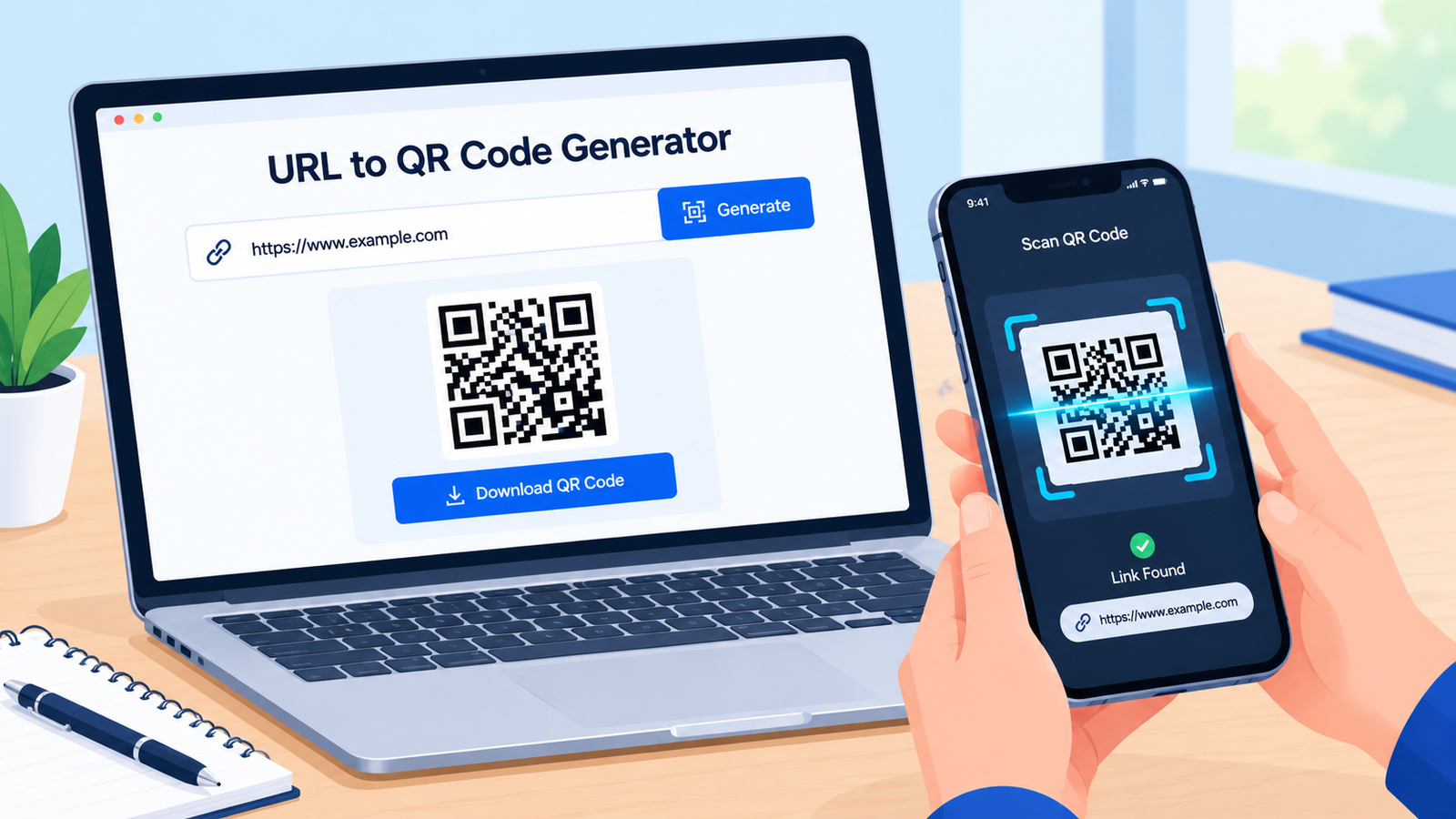
That last point deserves a clear explanation. Your link is written straight into the QR code. This is why the code never expires, and it is also why it cannot be changed. If your link changes one day, generate a new code and replace the old one.
Need the opposite: getting a link out of a QR code?
For most modern phones, this is easy. Open the camera, point it at the QR code and tap the banner that appears. The link opens, or you can copy it from there.
If you want the full basics of making codes from web addresses, read our guide on how to create a QR code from a URL. A dedicated QR Scanner tool is planned for a later update.
Frequently asked questions
How do I convert link to QR code for free?
Copy your link, open the ud2ools URL to QR Code Generator, paste the link into the box and press Generate. Then download the QR code as PNG or SVG. It is free, needs no account and no installation, and everything runs in your browser.
Can I turn a WhatsApp or YouTube link into a QR code?
Yes. Any normal web link works, including WhatsApp chat links, YouTube videos and channels, Google Drive files, Google Maps locations, Instagram profiles and form links. Paste the link in the generator and it creates a scannable QR code for that exact address.
Does a QR code made from a link expire?
No. The link is written directly into the QR code, so the code itself does not expire. The only thing that can break it is the page behind the link. If that page is deleted or made private, the QR code will lead nowhere.
Can I change the link after I make the QR code?
No. The link is stored inside the code, so it cannot be edited later. If your link changes, generate a new QR code and replace the old one. Check the link carefully before you print anything.
Is my link saved when I convert it?
No. The ud2ools generator runs in your browser, and your link is not saved anywhere. You can paste a link, download the QR code and leave without creating an account.
Should I download PNG or SVG?
Use PNG for chats, social media posts and documents. Use SVG for printing, especially on large items like posters and banners, because it stays sharp at any size. If you are unsure, download both.