
Email QR Code Generator
Need people to email you without typing your address, subject or message by hand? This free email QR code generator turns those details into a QR code. When someone scans it, their email app opens with everything already filled in, so all they have to do is tap Send. You can download the code as a PNG or SVG in a few seconds, and you don’t need to sign up for anything.
How to Use This Email QR Code Generator
- Pick a mode. Simple is perfect for one recipient. Choose Advance if you also need CC and BCC.
- Add the details. Enter the email address (separate several with commas). Subject and message are optional.
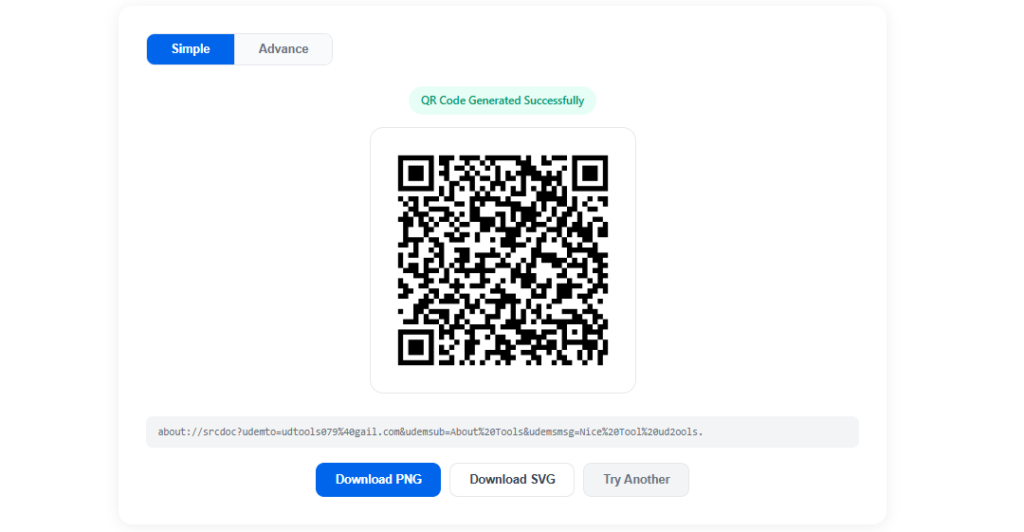
- Click Generate QR Code. Your code appears right away on the screen.
- Download and share. Save it as PNG for quick sharing or SVG for print. Scan it once with your own phone before you share it.
What Is an Email QR Code?
An email QR code is a normal QR code that carries the instructions for a new email: who it goes to, what the subject is and, if you want, what the message says. Scan it with a phone camera and the default email app opens a fresh draft with those fields already filled in.
Email links follow the mailto format described in RFC 6068, and the code itself is a QR pattern of black and white squares. This email QR code generator combines the two, so you never have to write link text yourself.
One detail worth knowing: the code stores a short link to this page, and the page instantly hands your details to the email app. It takes a split second, and you won’t notice it when you scan.
Why Use Our Email QR Code Generator
Free, No Sign-Up
No account, no watermark and no daily limit. We think an email QR code generator should just work, so this one does.
Private by Design
The tool builds the code inside your own browser. We don't upload or save what you type.
PNG and SVG Downloads
PNG is quick to share. SVG stays crisp at any size, which is what your printer will want.
Works With Any Email App
Gmail, Outlook, Yahoo Mail, Apple Mail and Thunderbird all understand email links, so the code opens whichever app your phone uses by default.
Works on Any Screen
Phone, tablet or laptop, the tool adjusts to your screen and the finished code scans the same everywhere.
CC and BCC Support
Switch to Advance mode to add CC and BCC recipients along with the main address.
Simple Mode vs Advance Mode in the Email QR Code Generator
Both modes create the same kind of QR code. The only difference is how many fields you get to fill in.
| Feature | Simple Mode | Advance Mode |
|---|---|---|
| Recipient (To) | One or more addresses | One or more addresses |
| CC recipients | Not available | Yes |
| BCC recipients | Not available | Yes |
| Subject line | Optional | Optional |
| Message body | Optional | Optional |
| Best for | Business cards and quick contact codes | Support desks and team inboxes |
Where an Email QR Code Comes in Handy
Anywhere you’d normally print an email address, a QR code saves people the typing, and an email QR code generator makes one in seconds. These are the spots where it works best:
- Business cards: let people email you with one scan instead of copying your address.
- Flyers and posters: add a subject like “Event enquiry” so replies are easy to sort.
- Product packaging and manuals: send customers straight to your support inbox.
- Feedback cards: pre-fill the subject with the product or service name.
- Shop counters and reception desks: a printed code beside the till makes quick questions and orders easy.
- Printed resumes: put a code on your CV so recruiters can email you right away. You can build one with our CV & Resume Maker.
Want to share something other than an email address? Try our Text to QR Code Generator as well.
Tips for a QR Code That Scans Every Time
- Check the address twice. One typo and every scan goes to the wrong inbox.
- Keep the message short. A long message makes the pattern denser, and dense codes are harder for a phone camera to read, whichever email QR code generator you use.
- Keep private details out. The subject and message become part of the link inside the code, so anyone who scans it can read them. Leave out passwords and personal data.
- Test before you print. Scan the finished code with your own phone, and with a second phone if you can.
- Use SVG for print. It stays sharp on business cards, posters and banners.
- Print it big enough. About 2 x 2 cm is a safe minimum for a code to scan comfortably.
Frequently Asked Questions
Type the address into the email QR code generator above, add a subject and message if you want, and click Generate QR Code. Then download the result as a PNG or SVG file.
Yes, it’s completely free. There’s no sign-up, no watermark and no limit on how many codes you create.
Simple mode takes one or more recipients, a subject and a message. Advance mode adds CC and BCC fields for people who should be copied in openly or privately.
Any app set as your phone’s default email app, including Gmail, Outlook, Yahoo Mail, Apple Mail and Thunderbird. Scanning opens a quick page that passes your details to that app. If nothing happens, tap the button on that page.
Yes. Separate the addresses with commas in the To field. The same works for the CC and BCC fields in Advance mode.
The tool builds the code in your browser, and we don’t save what you type. Keep in mind that the subject and message sit inside the link that the QR code holds, so avoid putting anything private in them.
The code points to this page on ud2ools.com, so it works for as long as the site is online. Keep a copy of your PNG or SVG file, and you can always generate a fresh code in seconds.