
VCard QR Code Generator
Need people to save your phone number without typing it in? This free vCard QR code generator turns your name, number, email, website and address into a QR code. Scan it, and the contact details are ready to save on a phone. No signup, no app to install, and nothing is uploaded anywhere.
Quick answer: A vCard QR code stores your contact details inside the QR image. Type your details into this vCard QR code generator, download the PNG or SVG, and anyone can scan it with Google Lens to save you as a new contact.
How to Use the VCard QR Code Generator
1. Enter your details. Type your first name and phone number. Last name, email, website and address are optional.
2. Click Generate QR Code. Your contact QR appears in a few seconds, right inside the tool.
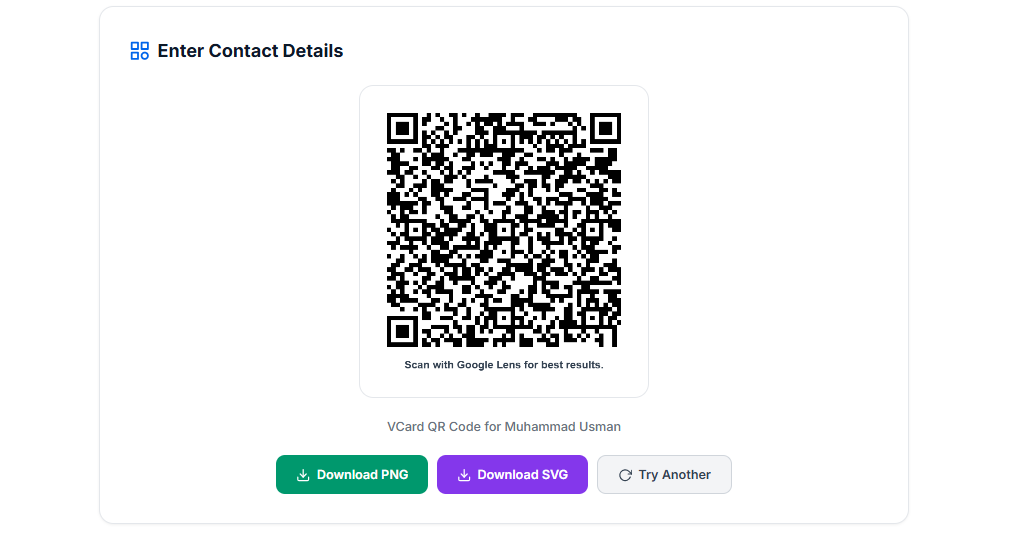
3. Download it. Choose PNG for WhatsApp and social media, or SVG for printing. The line “Scan with Google Lens for best results.” is written under the QR, so it travels with the image.
4. Scan and save. Open Google Lens, point it at the QR code and tap the option to add the contact.
What Is a VCard QR Code?
A vCard QR code is a QR code that holds a digital business card. The data inside follows the vCard format, a standard file format for contact information (you can read more on the vCard page on Wikipedia). When a scanner reads the code, it sees a name, a number and other fields, so the phone can offer to save them as one contact.
The difference from a normal QR code is the content. A website QR opens a link, while a vCard QR hands over a contact. This vCard QR code generator builds the code in the vCard 3.0 version, which most phones and contact apps understand.
Why Use This VCard QR Code Generator
Free With No Signup
Make as many codes as you like. No account, no watermark, no limits.
Your Details Stay on Your Device
The QR code is built in your browser. Your name, number and address are not sent to our server or stored anywhere.
PNG and SVG Downloads
PNG is quick for sharing. SVG stays sharp at any size, which suits business cards and banners.
Scan Hint Inside the Image
Every download has "Scan with Google Lens for best results." under the QR, so the people you share it with know how to scan it.
Works on Any Device
Use it on a phone, tablet or computer. Nothing to install.
Clean vCard 3.0 Output
Name, number, email, website and address go into standard vCard fields, so the contact fills in the right boxes.
VCard QR Code vs Other QR Code Types
Not sure which QR type you need? Here is what happens when someone scans each one.
| QR Code Type | What Happens on Scan | Best For |
|---|---|---|
| VCard QR | Offers to save a contact | Business cards, shop banners, email signatures |
| URL QR | Opens a web page | Websites, social media profiles |
| Text QR | Shows plain text | Short notes and messages |
| Wi-Fi QR | Connects to a network | Guests, cafes, offices |
How to Scan a VCard QR Code
Scan With Google Lens on Android
Open Google Lens or the Google app and point the camera at the QR code. Tap the contact option, and the name, number, email, website and address fill in the new contact form. Tap Save and you are done.
If Your Camera Shows Plain Text
Some phone camera apps read the QR code but do not recognise the contact format, so they show the raw text instead. That is a limit of the camera app, not a problem with the QR code. Open the same code in Google Lens and it should offer to add the contact. On iPhone, try the Camera app first, and if you only see text, use the Google app, which has Lens built in.
Tips for a QR Code That Scans Every Time
- Add the country code to your number, like +92 300 1234567, so it works from anywhere.
- Keep the address short. Long text makes the QR denser and harder to scan.
- Test before you print. Scan the code with two different phones first.
- Use SVG for print and keep the QR at least 2 cm (about 0.8 inch) wide on a business card.
- Do not stretch, crop or recolour the image. Dark code on a white background scans best.
Who Can Use a VCard QR Code?
Anyone who hands out contact details again and again will save time with one. Shop owners can put it on a counter sign or banner. Freelancers can add it to a portfolio or WhatsApp status. Job seekers can place it on a CV, and event teams can print it on badges. One scan replaces typing a number by hand.
Frequently Asked Questions
A vCard QR code is a QR code that stores contact details in the standard vCard format. When someone scans it, their phone can offer to save your name, number, email, website and address as a new contact, without typing anything.
Yes. This vCard QR code generator is free, needs no signup, and has no limit on how many codes you make. The downloads have no watermark.
You need a scanner that understands contact codes. In our tests, Google Lens read the code as a contact, while some built-in camera apps showed plain text. Google Lens is part of the Google app, so keep it as your backup scanner.
Some camera apps read the QR code but do not recognise the contact format, so they show the raw text. Open the same QR code in Google Lens and it should offer to add the contact. That is why every image downloaded from this tool has a Google Lens reminder under the QR.
No. This vCard QR code generator builds the code inside your browser. Your name, phone number and address are not sent to ud2ools or saved anywhere. Close the page and the details are gone.
No, this tool does not add photos. A photo link makes the QR code much denser, and many scanners ignore it anyway. For a clean code that scans well, stick to name, number, email, website and address.
PNG is a regular image, good for WhatsApp, social media and email. SVG is a vector file that stays sharp at any size, so choose it for business cards, banners and printing.
No. The details are written inside the QR itself, so it works as long as the image is readable. It also means you cannot edit it later. If your number or email changes, generate a new code.